Saturday, November 14, 2020

UML Basics

Unified Modeling Language (UML) makes it possible to describe systems with words and pictures. It can be used to model a variety of systems: software systems, business systems, or any other system. Especially notable are the various graphical charts—use case diagrams with their stick figures or the widely used class diagrams. While these diagrams aren’t fundamentally new, the worldwide unification of modeling languages is new with UML, which was standardized by the Object Management Group (OMG), an international association that promotes open standards for object-oriented applications.

Note: The intention of this post is for quick reference to the most basic UML diagrams.

Basic Building Blocks

Boxes

Messages, states, and actions

Relationships


Types of modeling

Structural Modeling

1.       Things

a.       Physical

b.       Conceptual

2.       Static Parts

3.       Nouns

Diagrams

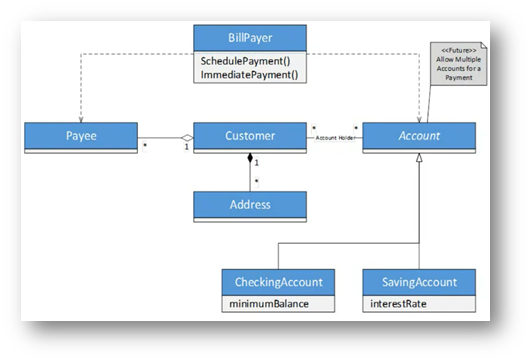
Class diagram

Implementation and inheritance

Relationships

Basic Class Diagram
Component diagram

Connected Components              

Basic Component Diagram


Package diagram

Basic Package Diagram

Deployment diagram

Behavioral Modeling

1.       Functionality

a.       Processes

b.       Interactions

2.       Dynamic Parts

3.       Verbs

Diagrams

Use-Case diagram
Sequence diagram
State diagram
Activity diagram

Friday, May 1, 2020

Jenkins, MSBuild and SonarQube

I had the challenge to set up code analysis on a codebase that is built on Jenkins as a build server. My team decided to use SonarQube as a tool for static analysis in order to detect bugs, code smells, security vulnerabilities and find some areas of improvement in our code, which by the way is written in C#.

What I had as available tools on the Jenkins server (installed in my workplace environment) were the following ones:

  1. MSBuild - for compiling and building the code;
  2. SonarScanner for MSBuild - for static analysis;
  3. vstest.console.exe - for running the unit tests;
  4. CodeCoverage.exe - for analyzing the output of the execution of the unit tests and calculate the code coverage and transform it into readable XML format;
Although I tried to install all of them including Jenkins server on my local machine and instead of CodeCoverage.exe tool which is available only with Visual Studio Enterprise edition I used dotCover from JetBrains, but the steps are similar and that is a story of its own and I'll skip it for now.

I'll write down for my future reference in case I need the same pipe.


Configure Job

The steps are the following.:

1. In the Configure Job page, in the Build section is placed build step "SonarScanner for MSBuild - Begin Analysis".

2. Then the next build step is executing the MSBuild command with its appropriate parameters such as the solution file etc...

3. Then the next build step is executing a windows batch with two commands. The first one which deletes the TestResults folder and its content. And the second one is running the vstest.console.exe with its appropriate parameters such as the unit test DLL's and /Logger: "trx" /Enablecodecoverage: true

4. Then the next build step is Windows Powershell where we're getting the TestResults.coverage file which is generated by the vstest.console.exe tool and placed in special folder $dir\$testdir\In\$env:computername\ (the $testdir is GUID-alike-name) and putting it in more meaningful folder  such as TestResults and after that, we are executing the CodeCoverage.exe tool and producing the output: "TestResults\TestResults.coveragexml" which then is passed in the first step as a parameter to the SonarScanner (/d:sonar.cs.vscoveragexml.reportsPaths=TestResults\TestResults.coveragexml).


5. And the final build step is "SonarScanner for MSBuild - end analysis". Don't forget this step. It is important to close the flow.

Sonar server config

Before configured Jenkins job is executed, we need to set up the things on the Sonar server-side such as the quality gate and quality profile. But what is very important is to set up the keys that are passed from the SonarScanner and those are the unit tests and code coverage results. Therefore in the Administration section, we're placing values for the "Visual Studio Unit Tests (XML) Reports Paths" and "Visual Studio Test Reports Paths" as displayed in the print-screen below.

Sonar dashboard

 And finally, after the Jenkins job finishes and a warm feeling in the chest comes as the satisfaction of the won struggle with the tools mentioned above. Now

Wednesday, August 14, 2019

Tuesday, January 26, 2016

Programmer Salary History

According to this blog post, the programmers salaries in Austin, Texas has tripled in 2013 since 1996.

I made a chart based on the numbers given in that blog post.


Tuesday, October 20, 2015

Robin Sharma: Great Life

#robinsharma
  1. Exercise daily.
  2. Get serious about gratitude.
  3. See your work as a craft.
  4. Expect the best and prepare for the worst.
  5. Keep a journal.
  6. Read “The Autobiography of Benjamin Franklin”.
  7. Plan a schedule for your week.
  8. Know the 5 highest priorities of your life.
  9. Say no to distractions.
  1. Drink a lot of water.
  2. Improve your work every single day.
  3. Get a mentor.
  4. Hire a coach.
  5. Get up at 5 am each day.
  6. Eat less food.
  7. Find more heroes.
  8. Be a hero to someone.
  9. Smile at strangers.
  10. Be the most ethical person you know.
  11. Don’t settle for anything less than excellence.
  12. Savor life’s simplest pleasures.
  13. Save 10% of your income each month.
  14. Spend time at art galleries.
  15. Walk in the woods.
  16. Write thank you letters to those who’ve helped you.
  17. Forgive those who’ve wronged you.
  18. Remember that leadership is about influence and impact, not title and accolades.
  19. Create unforgettable moments with those you love.
  20. Have 5 great friends.

  1. Become stunningly polite.
  2. Unplug your TV.
  3. Sell your TV.
  4. Read daily.
  5. Avoid the news.
  6. Be content with what you have.
  7. Pursue your dreams.
  8. Be authentic.
  9. Be passionate.
  10. Say sorry when you know you should.
  11. Never miss a moment to celebrate another.
  12. Have a vision for your life.
  13. Know your strengths.
  14. Focus your mind on the good versus the lack.
  15. Be patient.
  16. Don’t give up.
  17. Clean up your messes.
  18. Use impeccable words.
  19. Travel more.
  20. Read “As You Think”.
  21. Honor your parents.
  22. Tip taxi drivers well.
  23. Be a great teammate.
  24. Give no energy to critics.
  25. Spend time in the mountains.
  26. Know your top 5 values.
  27. Shift from being busy to achieving results.
  28. Innovate and iterate.
  29. Speak less. Listen more.
  30. Be the best person you know.
  31. Make your life matter.
via @robinsharma


Sunday, August 23, 2015

SubSonic Active Record


SubSonic is A Super High-fidelity Batman Utility Belt that works up your Data Access (using Linq in 3.0), throws in some much-needed utility functions, and generally speeds along your dev cycle.

SubSonic was one of my favorite tools in my early days of professional programming. It was an ancestor of the ORM tools, practically it was an ORM that could generate the entire Data Access Layer knowing only the connection string from the referenced database. It was magic for me in those days.

But after that came Entity Framework from Microsoft and the rest is history.

Lately, I've been looking through my old projects and it reminded me of my old passion for this tool. Then I've 'googled' if there are some updates, and the only thing I've found was that it has been moved on GitHub

Ports


Saturday, June 1, 2013

Raspberry Pi and Web camera

  1. Web camera (Logitech C170). In some cases an USB powered hub should be used because the camera uses more power than the Pi.
  2. Update your Pi: 
    • sudo apt-get update
  3. Install Motion application. It will get the web cam output and will send it to the built in web server: 
    • sudo apt-get install motion
  4. Plug in the web cam (directly or via powered USB hub). List the usb devices to verify that the camera is installed:
  5. Configure the motion application by editing the config file:
    • sudo nano /etc/motion/motion.conf
    • deamon=on
    • webcam_localhost=off
    • webcam_port=8081 (default setting)
    • you could play with the other parameters too.
    • sudo nano /etc/default/motion
    • start_motion_deamon=yes
  6. Open your web browser and type the pi_ip_address:8081 and check your result


    Sunday, April 28, 2013

    Raspberry Pi and VNC

    Steps to run VNC server on Raspberry Pi

    1. Install UltraVNC viewer on your laptop
    2. Install PuTTY on your laptop
    3.Connect to your Raspberry Pi from your laptop via the PuTTY (using the IP address of the RaspPi)
    4. Install VNC server on your RaspPi by typing this command in the PuTTY: sudo apt-get install tightvncserver
    4. Start the VNC server on your RaspPi by typing this command in the PuTTY: vncserver :1 -geometry 1280x800 -depth 16 -pixelformat rgb565
    5 Start the VNC Viewer from your laptop and type the IP address of the RaspPi. This way you'll have direct GUI connection to your Raspberry Pi.
